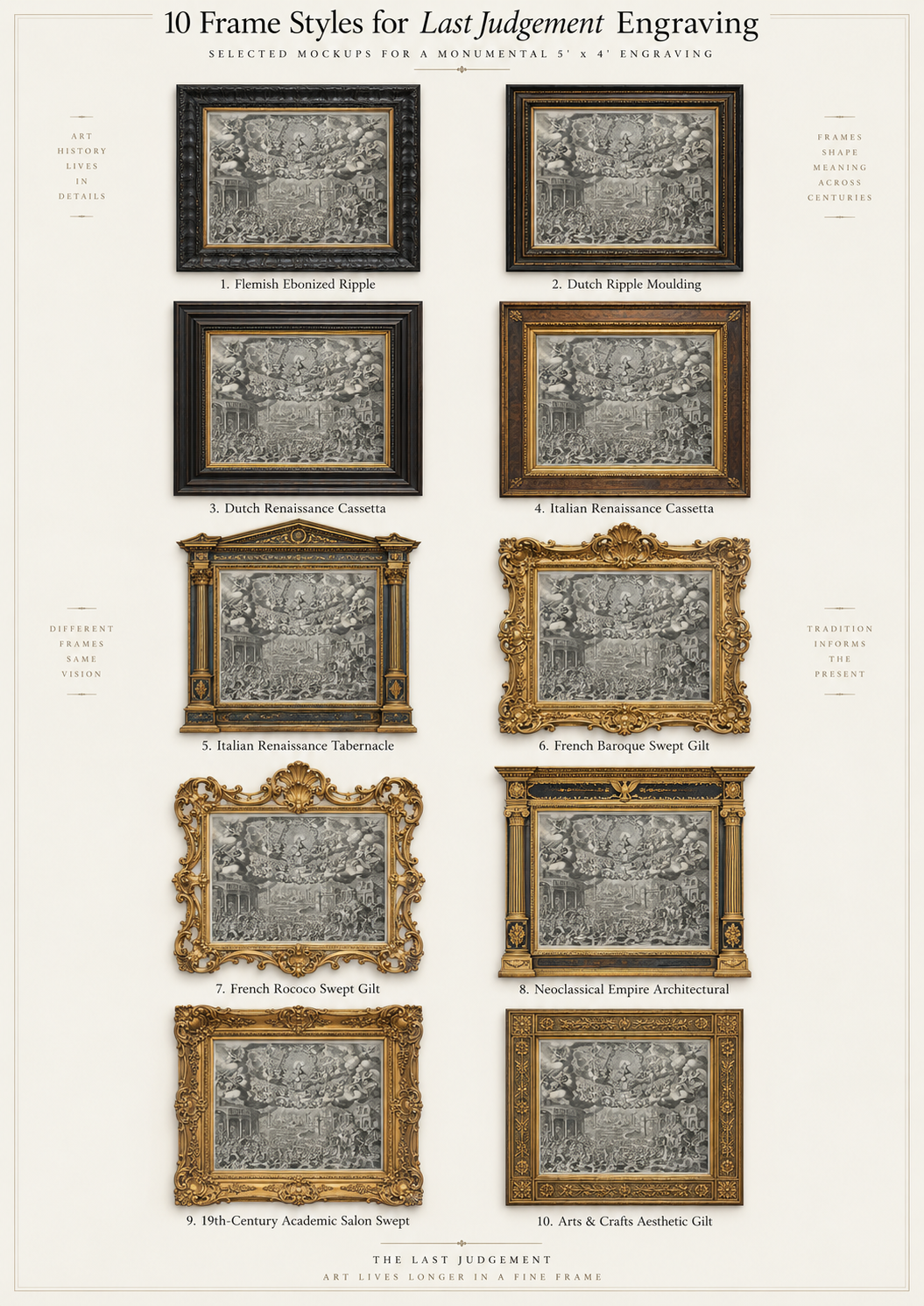
Just how big of an analysis can we perform with Gemini? Could Gemini actually scale to performing a museum-scale analysis of an entire art museum's on-display artworks? To explore this question, we visited the National Gallery of Art and National Portrait Gallery here in DC yesterday and walked every inch of every gallery across the two institutions taking cellphone photographs of every distinct frame style we spotted that was not explicitly minimalist. We tried to capture only one example of each frame style and to include at least one example of each style, but given time constraints we almost certainly missed some styles or included multiples. In all we captured 225 cellphone photos across the two museums comprising the entirety of the distinct frame styles we observed. We brought all of these images home and asked Gemini how to conduct an analysis of this scale given that you can't just upload 225 images to current AI models. Gemini first suggested we cluster the images locally using a cloud VM, but after many different iterations with Gemini writing and running various scripts, it became clear that local image clustering algorithms based on embeddings were getting too distracted by the paintings themselves and couldn't look past the artwork to examine only the frames, despite Gemini trying many different approaches like blanking the interior of the frames, zooming into portions of the frames, etc. Eventually, Gemini gave up on this approach and switched to where its real strength shines: allowing Gemini itself to perform the clustering. Gemini's advanced visual reasoning means it can focus just on the frames themselves, correct for varied photographic angles and lighting and tie the frames together by artistic style. Gemini thus organized a workflow where we uploaded the 225 photos, it wrote a script to organize them into contact sheets, then grouped the frames by artistic style, output a list of image filenames in each group, then wrote a final script to make new contact sheets, one per style, showcasing all of the images in each grouping. Finally, we revisited our framing experiment from last week and gave it our Jode engraving of the Last Judgement and asked it to select 10 frames from all of the 225 frames we found at the two museums and mock them up with our engraving.
Let's set things up and install the necessary libraries:
mkdir CLUSTER
cd CLUSTEER

# 1. If python3-venv isn't installed, install it:
sudo apt update && sudo apt install -y python3-venv

# 2. Create a virtual environment named 'frame_env'
python3 -m venv frame_env

# 3. Activate it
source frame_env/bin/activate

# 4. Now install the packages safely inside the environment
pip install open-clip-torch torchvision pillow scikit-learn numpy
This is the script that Gemini writes for us:
import os
import glob
import math
import torch
from PIL import Image, ImageDraw
import numpy as np
from sklearn.cluster import AgglomerativeClustering
import open_clip

# --- CONFIGURATION ---
IMAGE_DIR = "./frames"          # Path to your folder of frame photos
OUTPUT_DIR = "./clusters"       # Folder to save output grids
THUMB_SIZE = (250, 250)

# SIMILARITY THRESHOLD:
# Lower (e.g. 0.22) = Stricter matching (more, smaller clusters).
# Higher (e.g. 0.35) = Looser matching (fewer, broader clusters).
# 0.28 is a great sweet spot for frame styles and finishes.
DISTANCE_THRESHOLD = 0.28
# ---------------------

os.makedirs(OUTPUT_DIR, exist_ok=True)

# 1. Load CLIP Model
print("Loading vision model...")
device = "cuda" if torch.cuda.is_available() else "cpu"
model, _, preprocess = open_clip.create_model_and_transforms('ViT-B-32', pretrained='laion2b_s34b_b79k')
model = model.to(device)
model.eval()

# 2. Find Images
extensions = ('*.jpg', '*.jpeg', '*.png', '*.webp', '*.JPG', '*.JPEG', '*.PNG')
image_paths = []
for ext in extensions:
    image_paths.extend(glob.glob(os.path.join(IMAGE_DIR, ext)))

image_paths = sorted(image_paths)
print(f"Found {len(image_paths)} images.")
if not image_paths:
    print("No images found! Check IMAGE_DIR.")
    exit()

# 3. Extract CLIP Embeddings
print("Extracting visual features...")
embeddings = []
valid_paths = []

with torch.no_grad():
    for p in image_paths:
        try:
            img = Image.open(p).convert("RGB")
            tensor = preprocess(img).unsqueeze(0).to(device)
            emb = model.encode_image(tensor)
            emb = emb / emb.norm(dim=-1, keepdim=True)
            embeddings.append(emb.cpu().numpy().flatten())
            valid_paths.append(p)
        except Exception as e:
            print(f"Skipping {p}: {e}")

embeddings = np.array(embeddings)

# 4. Automatic Clustering based on visual similarity threshold
print(f"Clustering automatically with distance threshold = {DISTANCE_THRESHOLD}...")
clustering = AgglomerativeClustering(
    n_clusters=None,
    distance_threshold=DISTANCE_THRESHOLD,
    metric='cosine',
    linkage='average'
)
labels = clustering.fit_predict(embeddings)

num_clusters_found = len(set(labels))
print(f"Discovered {num_clusters_found} distinct groups across the collection.")

# 5. Helper function to render a grid
def create_grid(paths, title_filename):
    n = len(paths)
    if n == 0:
        return
    cols = 4 if n >= 4 else n
    rows = math.ceil(n / cols)
    grid_w = cols * THUMB_SIZE[0]
    grid_h = rows * (THUMB_SIZE[1] + 30)

    grid_img = Image.new("RGB", (grid_w, grid_h), color=(25, 25, 25))
    draw = ImageDraw.Draw(grid_img)

    for idx, img_path in enumerate(paths):
        col = idx % cols
        row = idx // cols
        x = col * THUMB_SIZE[0]
        y = row * (THUMB_SIZE[1] + 30)

        try:
            with Image.open(img_path) as thumb:
                thumb = thumb.convert("RGB")
                thumb.thumbnail(THUMB_SIZE)
                offset_x = x + (THUMB_SIZE[0] - thumb.width) // 2
                offset_y = y + (THUMB_SIZE[1] - thumb.height) // 2
                grid_img.paste(thumb, (offset_x, offset_y))

                fname = os.path.basename(img_path)
                if len(fname) > 22:
                    fname = fname[:10] + "..." + fname[-8:]
                draw.text((x + 10, y + THUMB_SIZE[1] + 5), fname, fill=(210, 210, 210))
        except Exception:
            pass

    out_file = os.path.join(OUTPUT_DIR, title_filename)
    grid_img.save(out_file, quality=90)
    print(f"Saved: {out_file}")

# 6. Separate main clusters from single-image outliers
cluster_groups = {}
for idx, label in enumerate(labels):
    cluster_groups.setdefault(label, []).append(valid_paths[idx])

# Sort clusters by size (largest first)
sorted_clusters = sorted(cluster_groups.values(), key=len, reverse=True)

main_cluster_count = 0
outlier_paths = []

for group in sorted_clusters:
    if len(group) > 1:
        main_cluster_count += 1
        create_grid(group, f"style_group_{main_cluster_count}_({len(group)}_frames).jpg")
    else:
        outlier_paths.extend(group)

# Put any individual standouts into one combined outliers grid
if outlier_paths:
    create_grid(outlier_paths, f"outliers_and_unique_styles_({len(outlier_paths)}_frames).jpg")

print("\nDone! Look in './clusters'.")
And run:
source frame_env/bin/activate
time python3 ./cluster_frames.py
Unfortunately, as we can see below, despite our request for Gemini to write a script that groups by frame, it simply ran the embeddings over the full images, causing Gemini to group primarily on the subject matter, with the images below all showing sideways-oriented photos of singular portraits with specific color palettes, with no similarity of frame style:
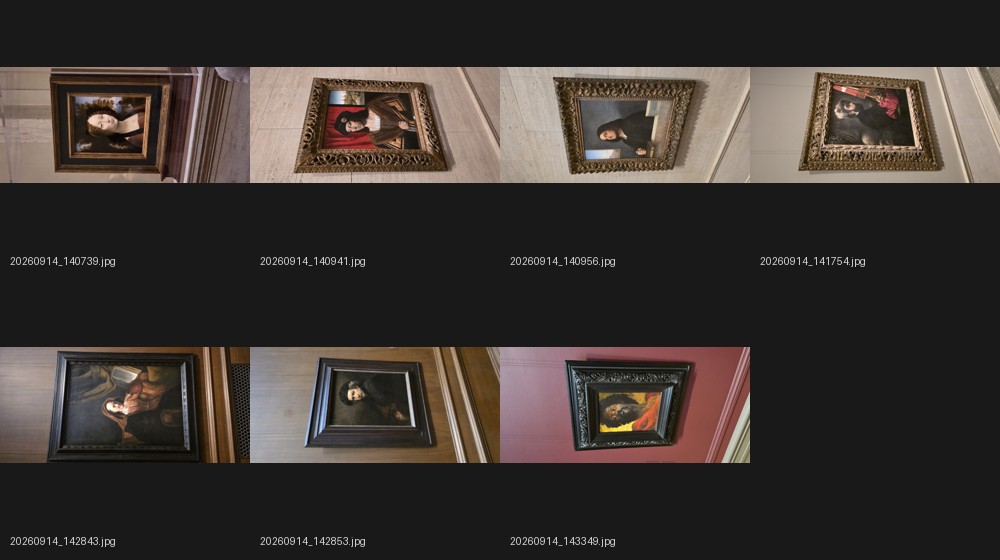
We provide this feedback to Gemini and it tries various iterations, attempting to locate and blank the canvas, extract just the frame edges and a variety of other approaches, all of which failed.
Let's go the opposite route: we'll ask Gemini for code to group the images into contact sheets (since we can't upload 200 full-res images into Gemini):
give me quick script to make a contact sheet of ~200 JPG images in a directory and label each in its caption below the image.
resize them smaller so that you can fit ~50 per sheet.
do it so that i can have you in a moment go back and analyze all of these.
This time it gives us this code:
import os
import glob
from PIL import Image, ImageDraw, ImageFont, ImageOps

# ================= CONFIGURATION =================
IMAGE_DIR = "./images"         # Path to your directory of JPGs
OUTPUT_DIR = "./contact_sheets" # Where contact sheets will be saved

COLS = 7                       # 7 x 7 = 49 images per sheet (~50)
ROWS = 7
CELL_IMG_SIZE = (220, 220)     # Max width/height per image thumbnail
CAPTION_HEIGHT = 42            # Vertical space reserved for the label
PADDING = 12                   # Spacing between cells
BG_COLOR = (255, 255, 255)     # Background color
TEXT_COLOR = (20, 20, 20)      # Label font color
# =================================================

def create_contact_sheets():
    os.makedirs(OUTPUT_DIR, exist_ok=True)

    # Collect and sort JPGs
    patterns = [os.path.join(IMAGE_DIR, "*.jpg"), os.path.join(IMAGE_DIR, "*.jpeg"),
                os.path.join(IMAGE_DIR, "*.JPG"), os.path.join(IMAGE_DIR, "*.JPEG")]
    files = []
    for p in patterns:
        files.extend(glob.glob(p))
    files = sorted(list(set(files)))

    total_images = len(files)
    if total_images == 0:
        print(f"No JPG images found in {IMAGE_DIR}")
        return

    per_page = COLS * ROWS
    total_sheets = (total_images + per_page - 1) // per_page

    cell_w = CELL_IMG_SIZE[0] + PADDING
    cell_h = CELL_IMG_SIZE[1] + CAPTION_HEIGHT + PADDING

    sheet_w = COLS * cell_w + PADDING
    sheet_h = ROWS * cell_h + PADDING

    # Font setup
    try:
        font = ImageFont.truetype("arial.ttf", 13)
    except IOError:
        font = ImageFont.load_default()

    print(f"Found {total_images} images. Generating {total_sheets} contact sheet(s)...")

    for page_idx in range(total_sheets):
        sheet = Image.new("RGB", (sheet_w, sheet_h), color=BG_COLOR)
        draw = ImageDraw.Draw(sheet)

        start = page_idx * per_page
        chunk = files[start : start + per_page]

        for i, file_path in enumerate(chunk):
            global_idx = start + i + 1
            col = i % COLS
            row = i // COLS

            x = PADDING + col * cell_w
            y = PADDING + row * cell_h

            try:
                with Image.open(file_path) as img:
                    img = ImageOps.exif_transpose(img)  # Fix phone/camera rotation
                    img.thumbnail(CELL_IMG_SIZE, Image.Resampling.LANCZOS)

                    # Center image inside cell
                    img_x = x + (CELL_IMG_SIZE[0] - img.width) // 2
                    img_y = y + (CELL_IMG_SIZE[1] - img.height) // 2
                    sheet.paste(img, (img_x, img_y))

            except Exception as e:
                print(f"Skipping corrupted image {file_path}: {e}")

            # Format caption: Index on line 1, filename on line 2
            base_name = os.path.basename(file_path)
            short_name = (base_name[:16] + "..") if len(base_name) > 18 else base_name
            caption = f"#{global_idx:03d}\n{short_name}"

            caption_y = y + CELL_IMG_SIZE[1] + 4
            draw.text((x + CELL_IMG_SIZE[0] // 2, caption_y), caption,
                      fill=TEXT_COLOR, font=font, anchor="ma", align="center")

        out_path = os.path.join(OUTPUT_DIR, f"contact_sheet_{page_idx + 1:02d}.jpg")
        sheet.save(out_path, "JPEG", quality=90)
        print(f"Saved: {out_path}")

    print("Done!")

if __name__ == "__main__":
    create_contact_sheets()
Which we then run:
time python create_contact_sheets.py
It then produced a series of 5 contact sheets like this:
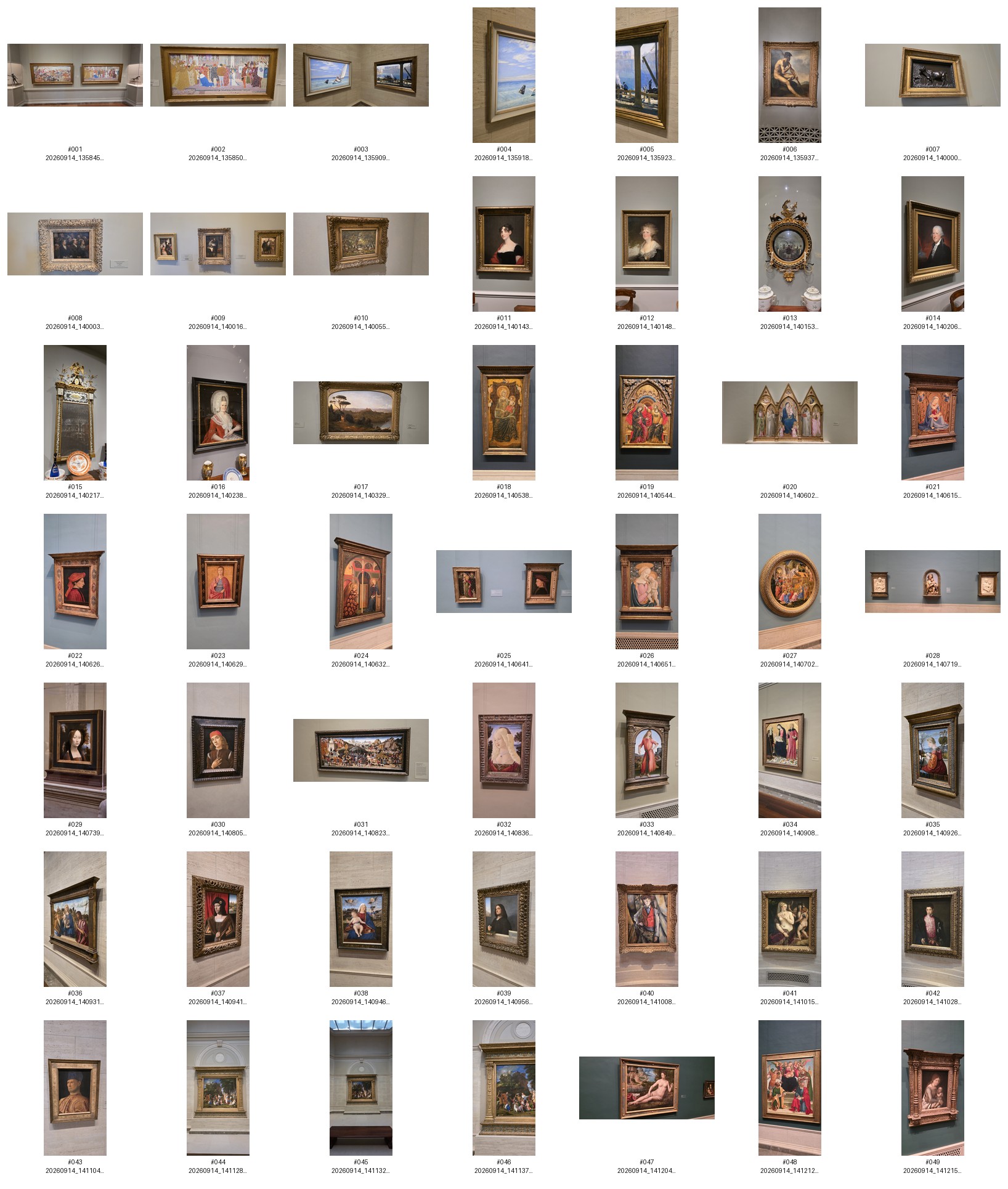
Gemini then gave us a prompt to use with these and we uploaded the five contact sheets and this prompt:
"Attached are contact sheets containing photographs of ~200 painting frames, each clearly numbered.
Please analyze the entire collection and:
Group by Similarity & Style: Cluster all frames into distinct stylistic categories based on their molding profile, ornamentation, era, and finish/gilding.
List the IDs: Under each category, list every frame number/label that belongs to it.
Detailed Style Breakdown: For each group, provide:
Style Name & Historical Era (e.g., French Rococo, 19th-C. American Plein Air, Neoclassical / Empire, Modern Floater, Cassetta, Rustic Wood).
Key Defining Features (molding profile, corner ornamentation, carving style, sight-edge details).
Finish & Material (e.g., water gilding, oil gilding, burnished gold leaf, pickled oak, painted lacquer).
Outliers: Flag any standout or eclectic frames that don’t fit neatly into the main groups."
This time Gemini itself performed the grouping:
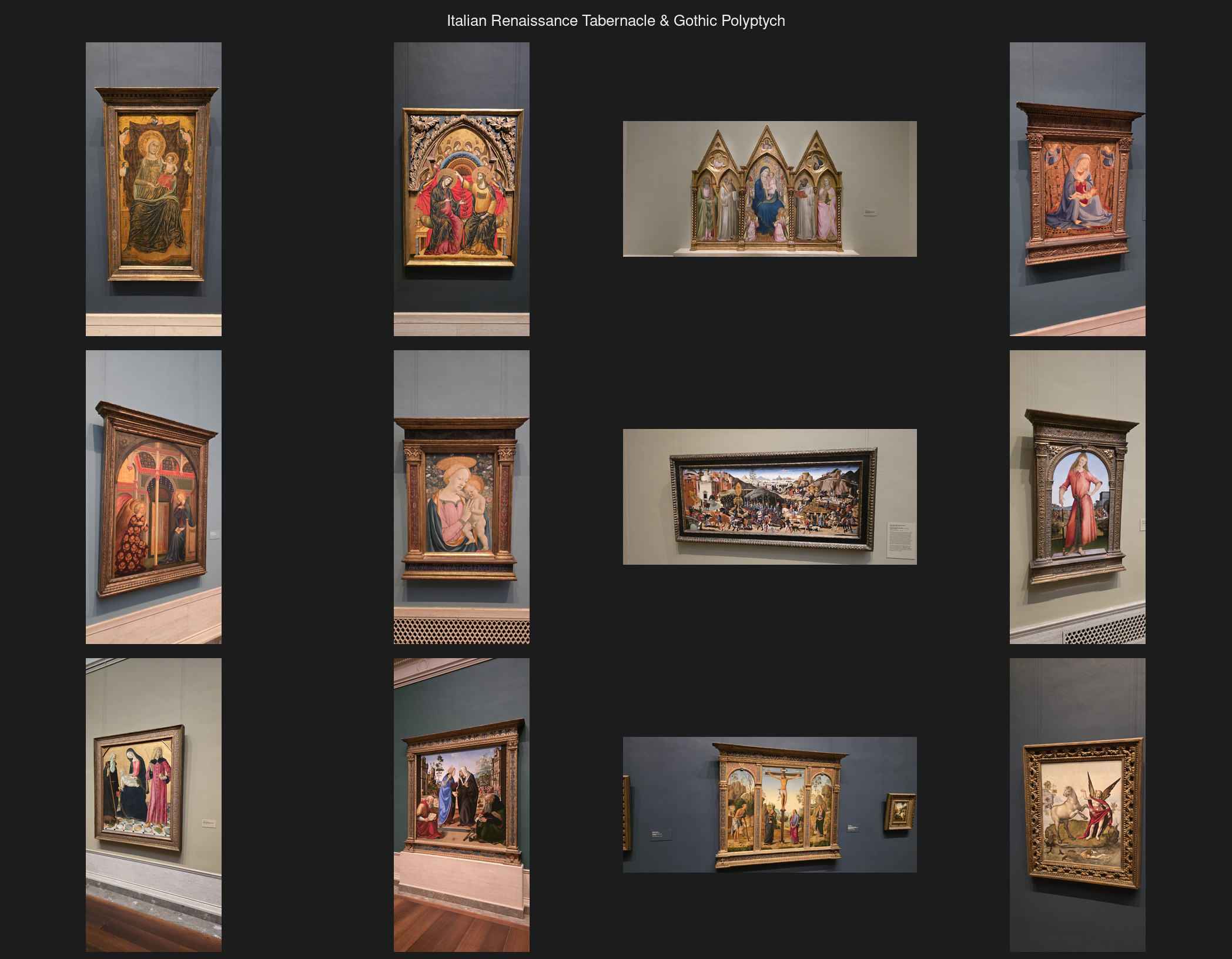
Group 1: Italian Renaissance Tabernacle & Gothic Polyptych Frames
Architectural structures mimicking classical temple facades or ecclesiastical altarpieces, common in 14th- to early 16th-century devotional works.
-
-
Included IDs: #018, #019, #020, #021, #024, #026, #031, #033, #034, #056, #059, #060
-
Style Name & Historical Era: Italian Renaissance Architectural / Tabernacle & Late Gothic (c. 1300–1520s).
-
Key Defining Features:
-
Profile: Architectural facade framing featuring flanking fluted pilasters or twisted colonnettes, an entablature with classical architrave/frieze, and projecting pediments (triangular, segmental, or lunette/arched headers).
-
Ornamentation: Dentil courses, egg-and-dart cyma moldings, pastiglia relief, acroteria finials, and predella-style base platforms.
-
Sight-Edge: Often cusped, trefoil, or round-arched apertures directly engaging the panel.
-
-
Finish & Material: Carved poplar or linden wood substrate; traditional water gilding over red bole with extensive hand-burnishing, punch-work tooling (punzonatura), and painted/tempera accents.
-
Group 2: Italian Renaissance & Mannerist Cassetta Frames
The quintessential "box" frame characterized by a prominent flat frieze surrounded by inner and outer moldings.
-
-
Included IDs: #022, #023, #025, #029, #030, #032, #035, #036, #037, #038, #039, #040, #041, #042, #043, #044, #049, #050, #052, #053, #057, #058, #062, #064, #065, #066, #067, #068, #069, #070, #072, #073, #074, #076, #080, #085, #088
-
Style Name & Historical Era: Italian Renaissance / Mannerist Cassetta (c. 1480–1620).
-
Key Defining Features:
-
Profile: Tripartite structure: raised outer back-edge molding, broad recessed flat central frieze (piatto), and an interior raised sight molding.
-
Ornamentation: Center-and-corner arabesques, running leaf motifs, sgraffito (gold scratched through dark paint/varnish), corner rosettes, and bead-and-reel or dentil inner sight edges.
-
Sight-Edge: Neat architectural astragals, imbricated leaf, or rope twist.
-
-
Finish & Material: Parcel-gilt walnut or fruitwood (dark polished timber contrasting with gilded relief), water gilding over bole, and sgraffito painted lacquer.
-
Group 3: Dutch & Flemish 17th-Century Ebonized & Ripple-Molded Frames
Dark, architectural, and lustrous profiles engineered to bounce candlelight onto Dutch Golden Age cabinet paintings.
-
-
Included IDs: #108, #109, #110, #113, #115, #126, #127, #128, #129, #130, #140, #151, #176, #186
-
Style Name & Historical Era: Northern Baroque / Dutch Golden Age Cabinet Frames (c. 1620–1690).
-
Key Defining Features:
-
Profile: Deep reverse-ogee (knull) or flat stepped box moldings. Highly planar with steep interior bevels guiding the viewer into the painting.
-
Ornamentation: Repetitive mechanical ripple (flammleiste) or wave moldings produced using hand-drawn shaping cutters; tortoiseshell veneers; applied ebony ripple strips along the sight-edge and outer rim.
-
Sight-Edge: Often features an ebonized bead or a gilded slip/liner to provide separation from dark canvas grounds.
-
-
Finish & Material: Ebonized pearwood, walnut, genuine ebony veneer, or tortoiseshell over red foil; high French polish or natural wax/shellac finish without gilding (or limited parcel-gilding on the sight fillet).
-
Group 4: French Baroque & Rococo Swept / Pierced Gold Leaf Frames
Dynamic, organic, and curvilinear frames designed for grand salons and portraits.
-
-
Included IDs: #093, #100, #104, #105, #111, #112, #114, #117, #118, #119, #162, #163, #165, #166, #173, #174, #181, #182, #195, #209, #212, #215
-
Style Name & Historical Era: French Louis XIV, Régence, and Louis XV Rococo (c. 1680–1770).
-
Key Defining Features:
-
Profile: Continuous swept/curvilinear scotia (hollow) with concave, dynamic top contours.
-
Ornamentation: Prominent projecting corner and center cartouches; pierced/undercut C-scrolls, rocaille shells, flowing acanthus foliage, and cross-hatched or berain-style patterned recutting in the gesso ground.
-
Sight-Edge: Gadrooned, egg-and-dart, or leaf-and-dart fillet running inside the deep hollow.
-
-
Finish & Material: Deeply carved lime or oak wood, multi-layered gesso ground painstakingly re-cut with iron tools (reparure); genuine 23–24k gold leaf water-gilded with alternating matte and burnished areas.
-
Group 5: Neoclassical, Directoire & Empire Architectural Linear Frames
Rational, straight-edged, and geometrically rigorous frames celebrating antiquity.
-
-
Included IDs: #011, #012, #014, #016, #087, #090, #160, #177, #180, #184, #188, #190, #191, #192, #193, #198, #200, #201, #202, #204, #205, #206, #207, #208
-
Style Name & Historical Era: Neoclassical, Louis XVI, and Empire (c. 1770–1830s).
-
Key Defining Features:
-
Profile: Flat, rigid architectural profiles: scotia/fascia, stepped cavetto, or severe cushion moldings.
-
Ornamentation: Bound laurel/oak leaf tori, continuous fluting, guilloche bands, waterleaf, and bead-and-reel. Corners frequently feature square block rosettes, anthemia (palmettes), or crossed ribbon ties.
-
Sight-Edge: Fine bead molding or flat gilded sight cove.
-
-
Finish & Material: Carved softwood and early composition ornament (compó); warm oil and water gilding with satiny, burnished or distressed antique leaf.
-
Group 6: 19th-Century Academic Salon, Barbizon & Hudson River Swept Frames
Heavy, deep-cavetto gilded frames with rich floral and foliate relief cast in composition.
-
-
Included IDs: #045, #046, #047, #048, #054, #055, #063, #071, #075, #077, #078, #079, #081, #082, #083, #086, #089, #091, #092, #094, #095, #096, #097, #098, #099, #101, #103, #106, #107, #116, #120, #121, #122, #123, #124, #125, #134, #135, #136, #137, #138, #139, #141, #143, #144, #145, #146, #148, #149, #152, #154, #155, #156, #158, #159, #161, #164, #167, #168, #169, #170, #171, #175, #178, #183, #185, #187, #189, #196, #197, #199, #203
-
Style Name & Historical Era: 19th-Century Academic / Victorian Salon / Hudson River & Barbizon Fluted Hollow (c. 1840–1900).
-
Key Defining Features:
-
Profile: Massive, deep scotia (hollow) molding intended to create a theatrical shadowbox effect on crowded salon walls.
-
Ornamentation: Dense foliage, laurel leaf garlands, acanthus corners, radiating reeded/fluted cavetto sections, and stippled/sand-textured grounds.
-
Sight-Edge: Multiple layered steps featuring pearl beading, rope twist, and waterleaf liners.
-
-
Finish & Material: Cast composition ornament (compó – chalk, glue, resin, and linseed oil) pressed onto wooden structural cores; oil-gilded and water-gilded gold leaf, often toned with antique patinas or umber glazes.
-
Group 7: Arts & Crafts, Aesthetic Movement, and Early Modernist / Plein Air Frames
Simplified, handcrafted, or minimalist moldings prioritizing surface texture and clean lines over heavy baroque carving.
-
-
Included IDs: #001, #002, #003, #004, #005, #006, #008, #009, #010, #017, #142, #147, #150, #153, #157, #179, #210, #211, #213, #214, #216, #217, #218, #219, #220, #221, #222, #223, #224, #225
-
Style Name & Historical Era: Aesthetic Movement, American Arts & Crafts, Whistler-style, and Early Modern (c. 1880–1930s).
-
Key Defining Features:
-
Profile: Flat reeded bands, plain step profiles, narrow architectural fillets, or gentle broad coves without projecting corner cartouches.
-
Ornamentation: Restrained surface texturing: hand-planed or wire-brushed wood, subtle reeding, incised geometric line-work, or unadorned surfaces.
-
Sight-Edge: Square unadorned rebated edge or thin contrasting slip.
-
-
Finish & Material: Pale lemon gold leaf, silver leaf with amber shellac, pickled/cerused oak, stained natural hardwood, or matte lacquered paint.
-
Standout Outliers & Non-Standard Frames
-
-
Circular (Tondo) Frames (#013, #027, #061, #172):
-
Hand-carved circular frames featuring laurel wreaths, fruit garlands (Della Robbia style), and radiating gadrooning designed specifically for Renaissance roundels and circular portraits.
-
-
Architectural Museum Views / Non-Frame Elements (#131, #132, #194):
-
#131 and #132 depict the central rotunda, domed oculus, and fountain of the National Gallery of Art West Building.
-
#194 documents a monumental gallery staircase, landing sculpture, and balcony perspective rather than an individual picture frame.
-
-
Vitrine & Multi-Picture Display Assemblies (#028, #051, #084, #102, #176):
-
These shots capture whole gallery installations or encased wall vitrines housing multiple small Renaissance bronze reliefs or oil sketches simultaneously.
-
-
Relief / Plaque Molding (#007):
-
Heavy stepped box frame designed with extra rebate depth to accommodate a high-relief metal sculpture/plaque rather than a canvas.
-
-
Now let's visualize these:
perfect, now give me a script or shell commands that makes a contact sheet for each of the 7 styles + outliers above.
make the images 500x500 each to ensure sufficient detail for each image.
use imagemagick if that is simpler.
The first time around, Gemini wrote a script that tried to use the image IDs to make the contact sheet instead of the original filenames:
those are the numeric IDs.
go back to the original contact sheets to get the filenames for each and rewrite that script.
And we finally get our image groupings:
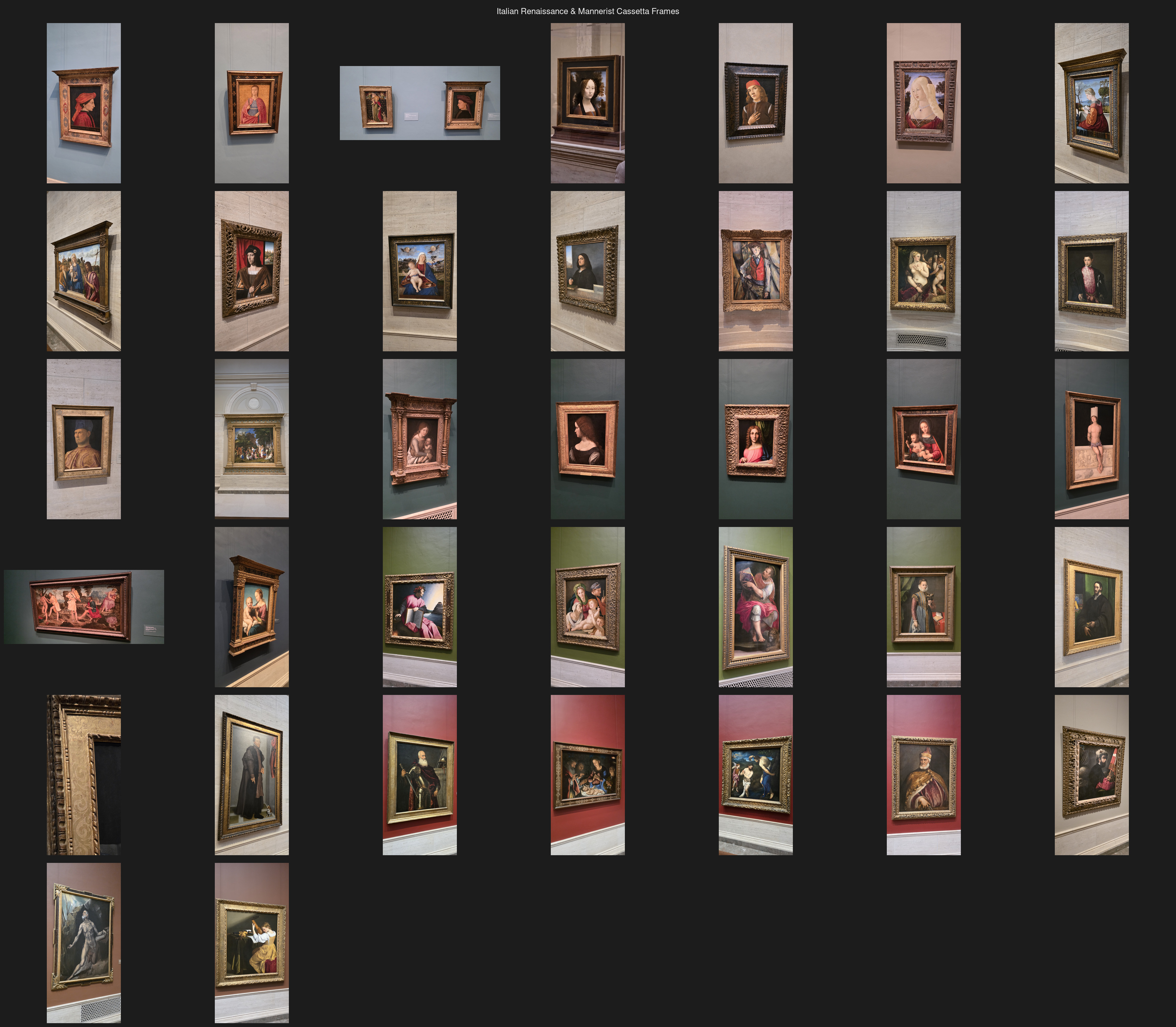
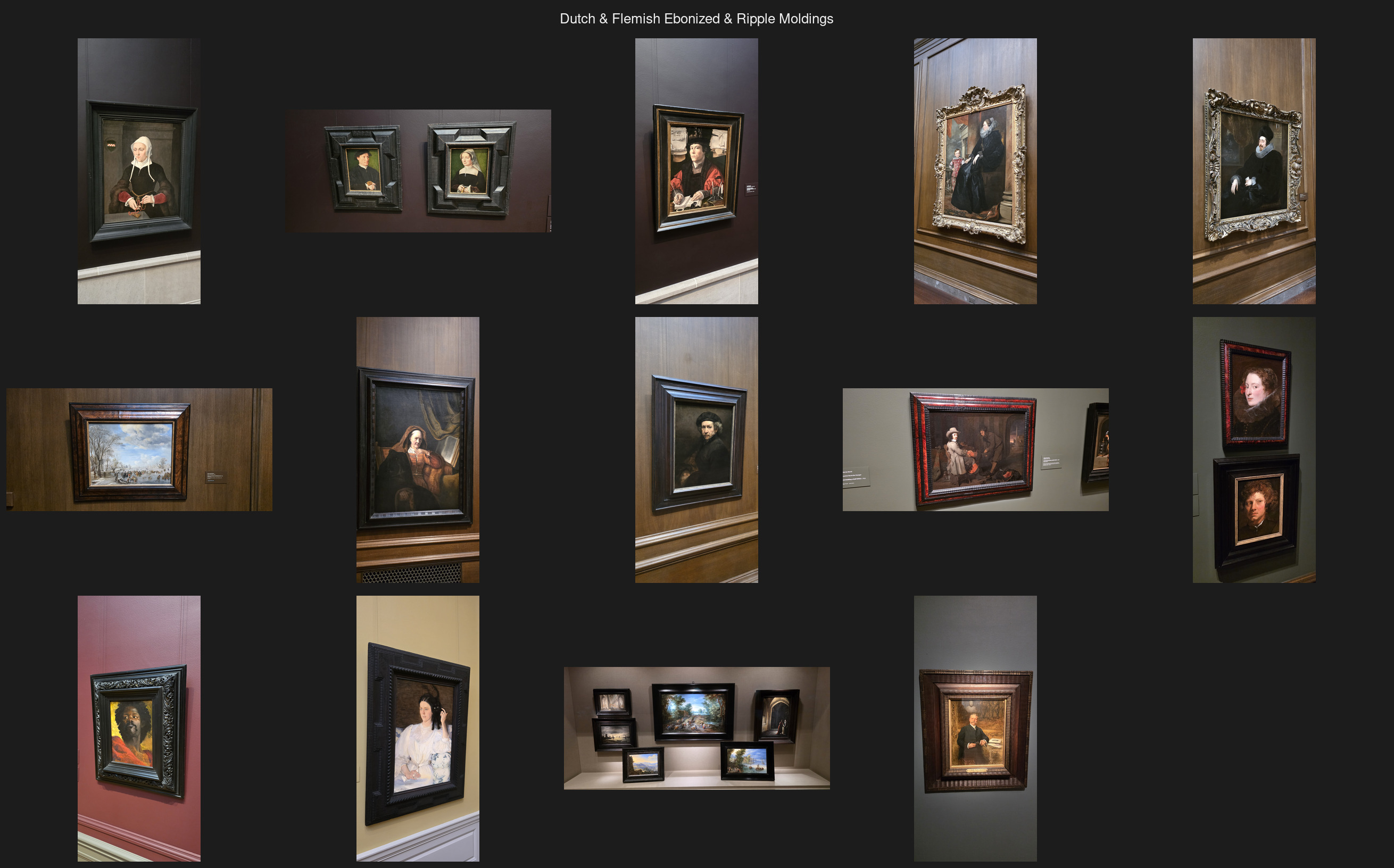
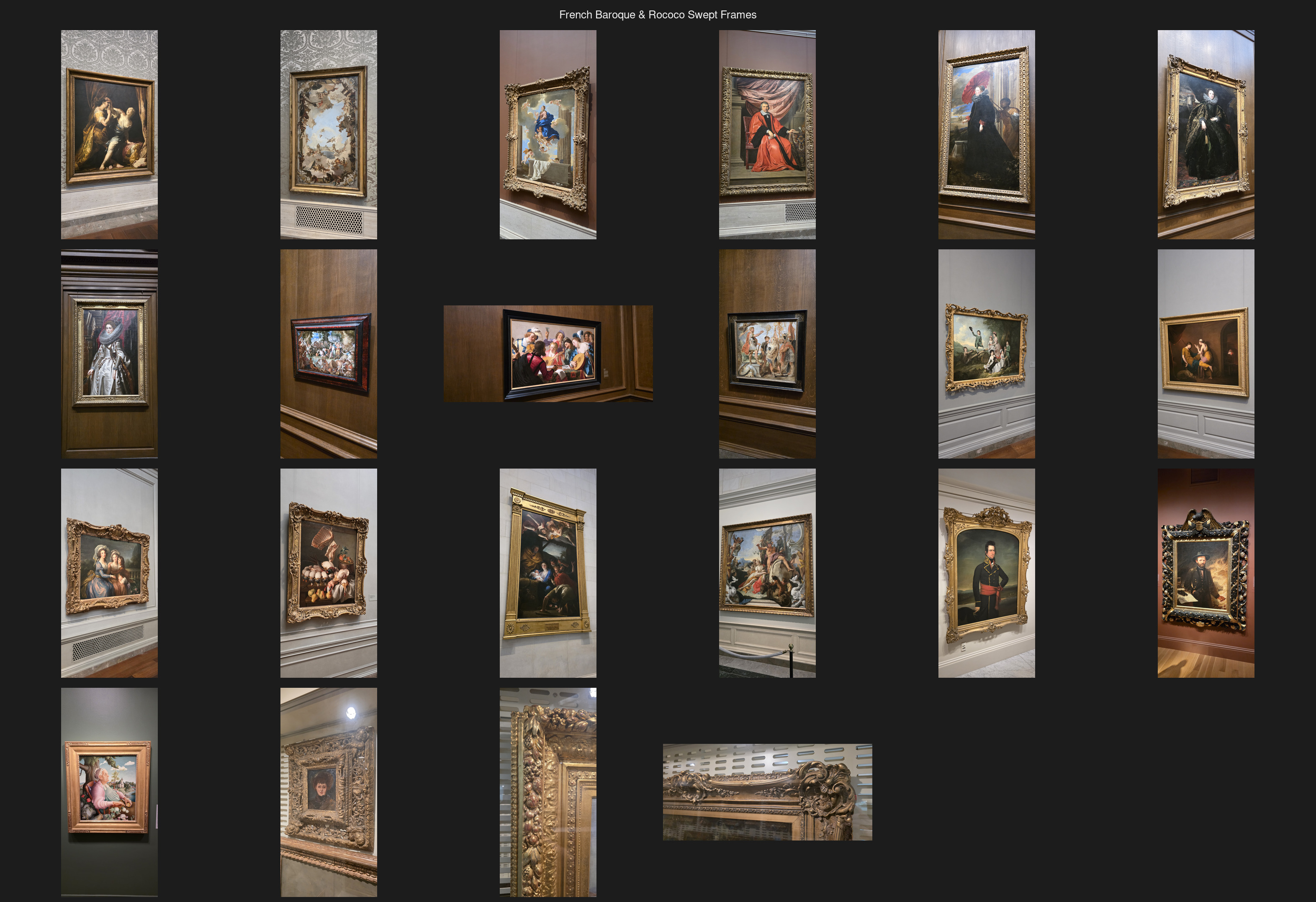
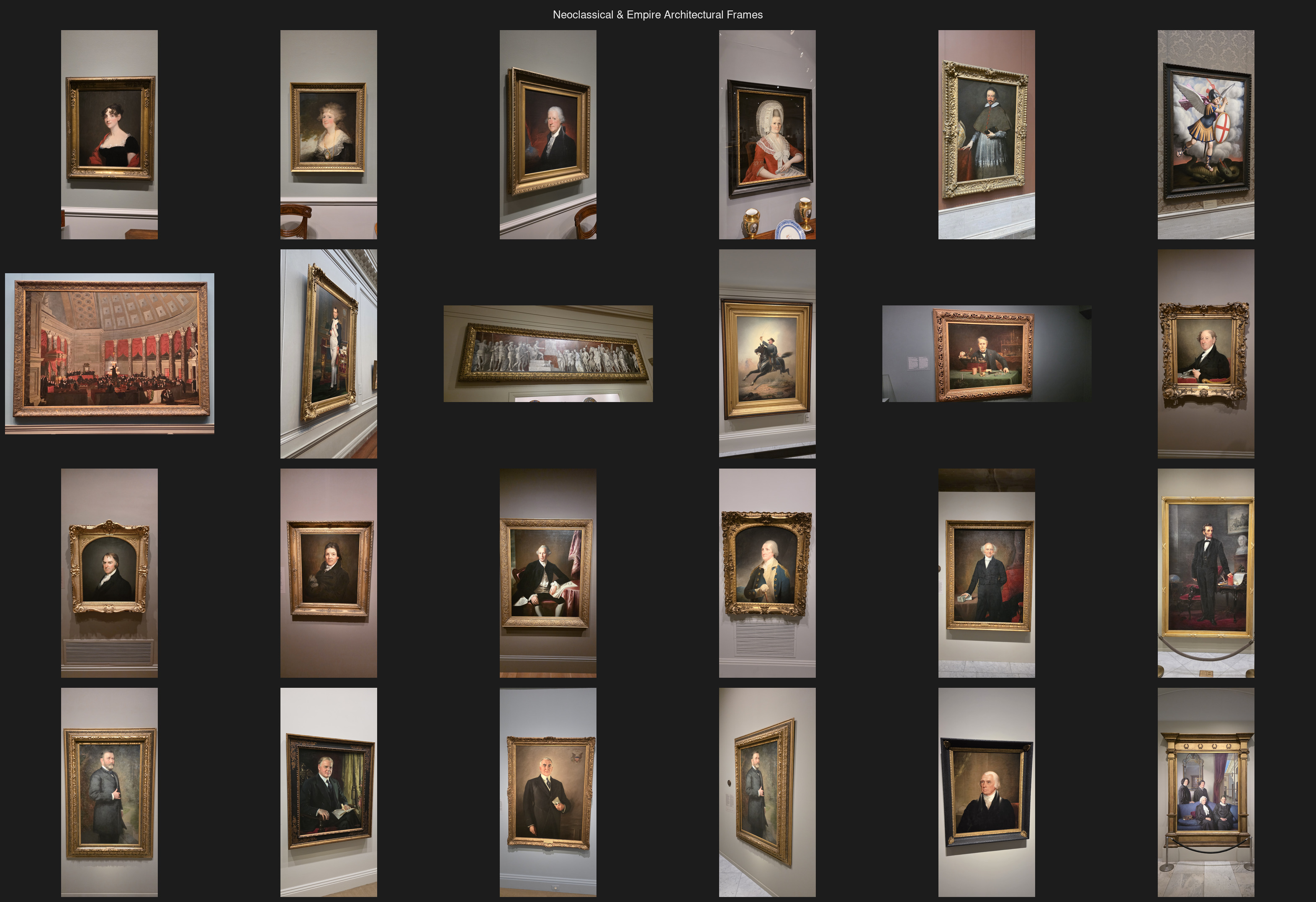
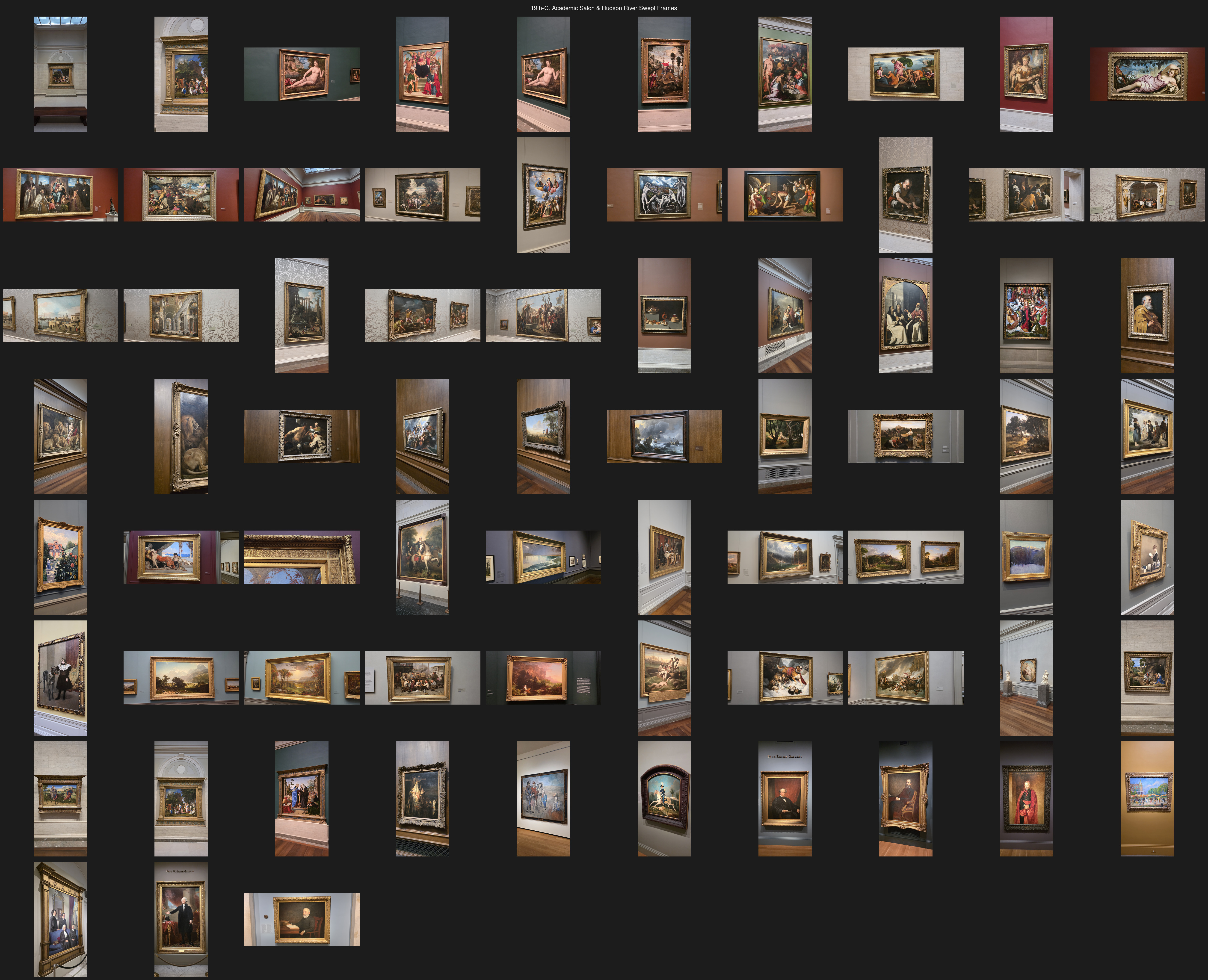
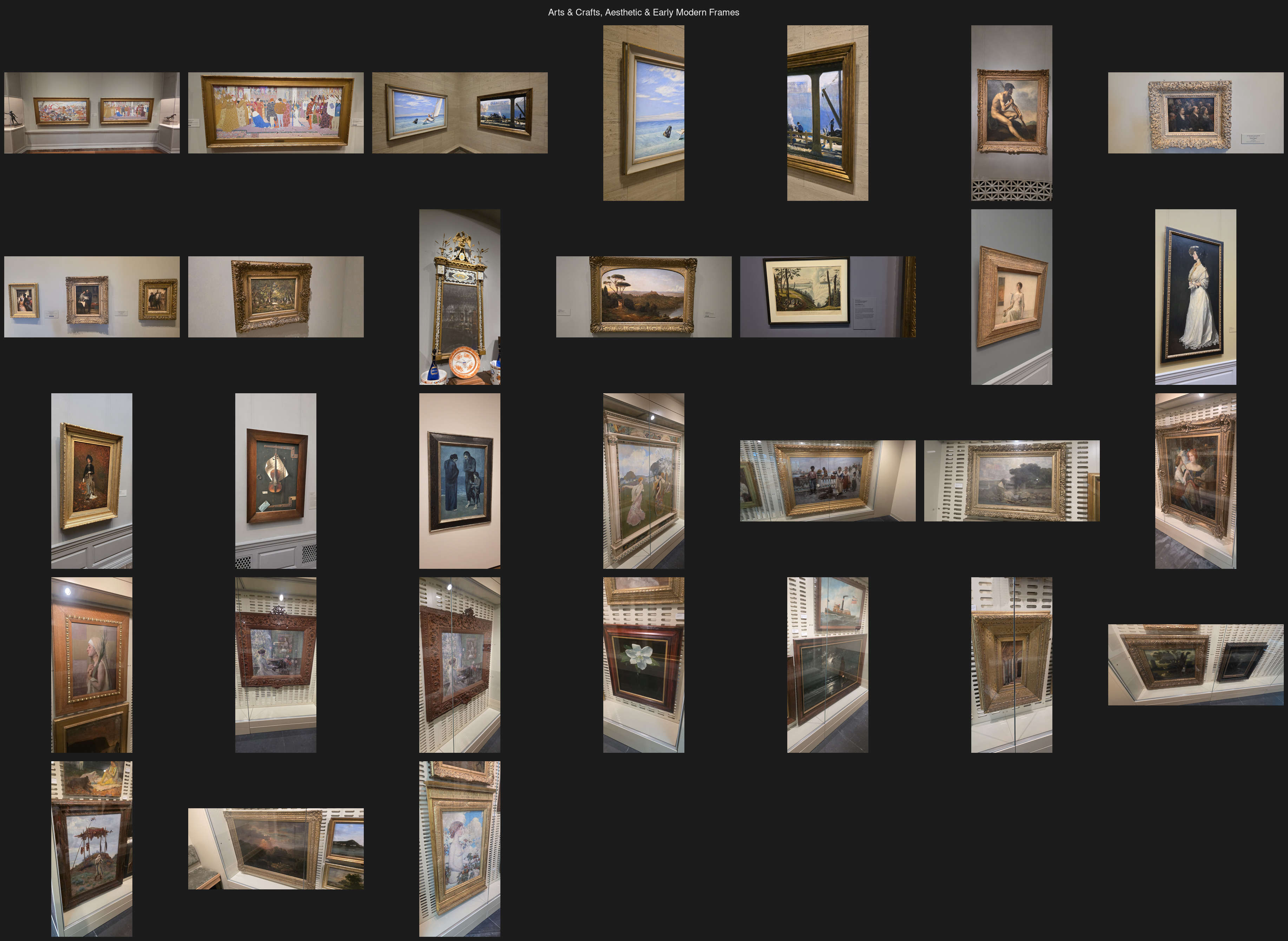
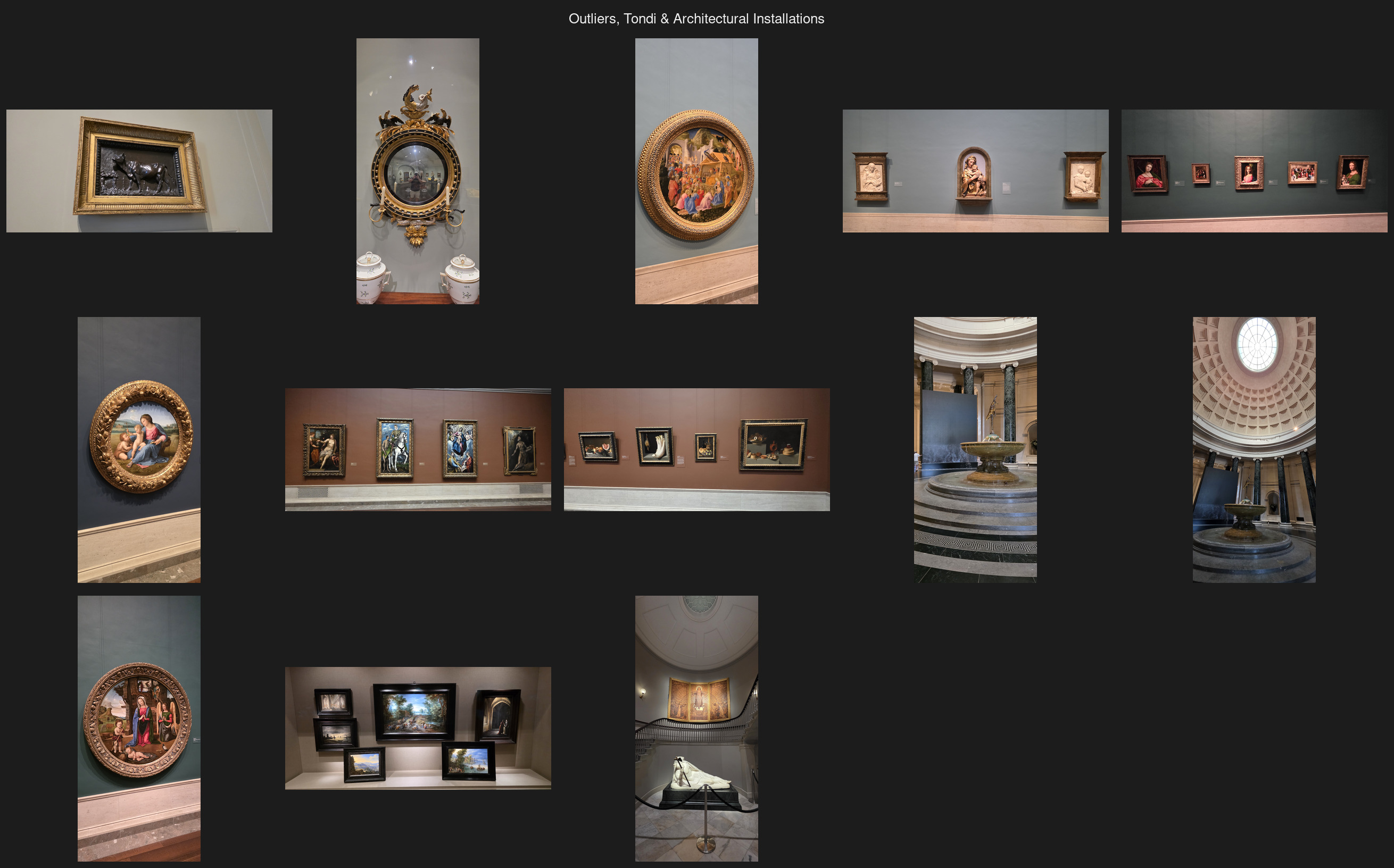
Finally, let's now use this organizational structure to expand Gemini's horizons for framing our Jode Last Judgement engraving:
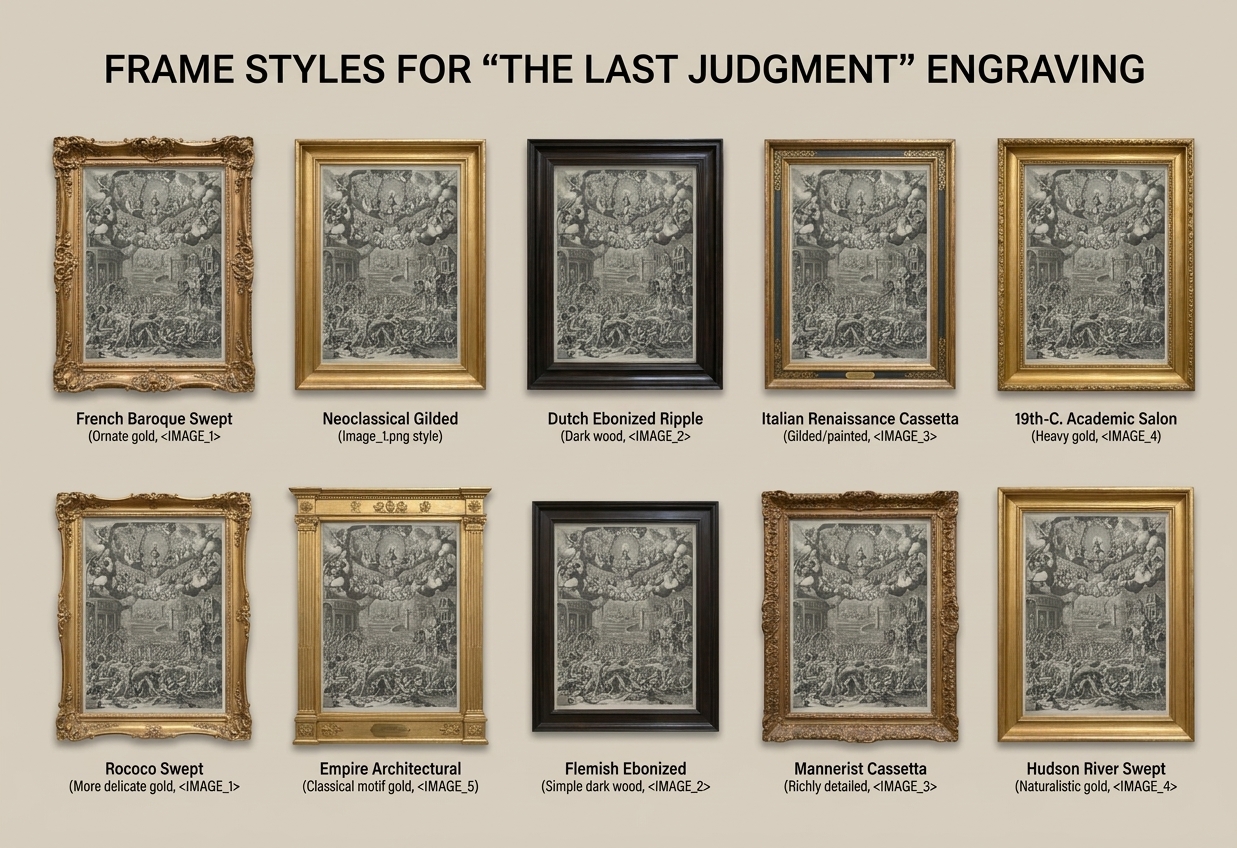
Attached are a set of contact sheets of frame styles. I've also attached a massive 5x4' engraving. Go through all of these frames and pick 10 styles that you think would look best with this engraving and provide me a poster with mockups of all 10 with my engraving and their style names.
Here is Nano Banana Pro's results:
And ChatGPT's results: